Build the Workstation Around Your Real Tasks
A home office within a family room works better when its parts are arranged as one system. The chair, desk, screen, input devices, lighting, and storage affect both the worker’s comfort and how easily the room continues to support conversation, reading, and play. A laptop on a sofa may be convenient briefly, but it should not become the default for sustained work merely because the shared room lacks a separate office. Begin with the actual tasks, establish a suitable working surface and supported seat, and check the arrangement while the rest of the room is occupied. Useful adjustments improve reach and visibility without borrowing someone else’s regular sitting place. The finished setup should also offer a simple way to put work materials away when family-room activities resume.
Observe a Complete Work Session Before Rearranging
Notice the moments when you leave a supported position to reach, read, or retrieve something. At a shared family-room table, a notebook may be pushed away to make room for another person’s activity, while a lamp needed for reading may have been turned toward the sofa. Record the actual task and the awkward step before rearranging anything. Then agree which part of the surface and which light source are available during work. A defined working area gives the ergonomic adjustments a stable foundation instead of requiring the user to rebuild a comfortable position each time the room becomes busy.
Include tasks away from the keyboard. Calls, printed documents, drawing, and packing work materials may need different surfaces or positions. Some can share the main work area, while others may deserve a nearby location. Plan for the transitions that occur repeatedly, since a tidy setup photographed between tasks can hide the friction experienced during them.
If the room is shared, identify who uses the workstation and how often its arrangement changes. Different users may need different chair or display settings. A setup that can be reset conveniently is more practical than one that depends on a single fixed pose. Keep the essentials understandable so a short changeover does not become a lengthy reconstruction every morning.
Clear the Space Needed for the User
Remove storage from the space intended for legs and chair movement. The desk’s usable clearance matters more than its overall exterior dimensions. Check access with the chair in its working position, including the route for entering and leaving. A cabinet or cable bundle should not force the user to sit at an awkward angle to reach the equipment.
OSHA’s desk guidance considers work-surface depth, clearance, and the relationship between equipment and body position. Use that approach when assessing a home desk that also stores household objects. Keep the operating area for the person separate from convenient-looking storage capacity. Reorganizing what is underneath may improve usability before a furniture replacement is necessary.
Establish a Supported Chair Position
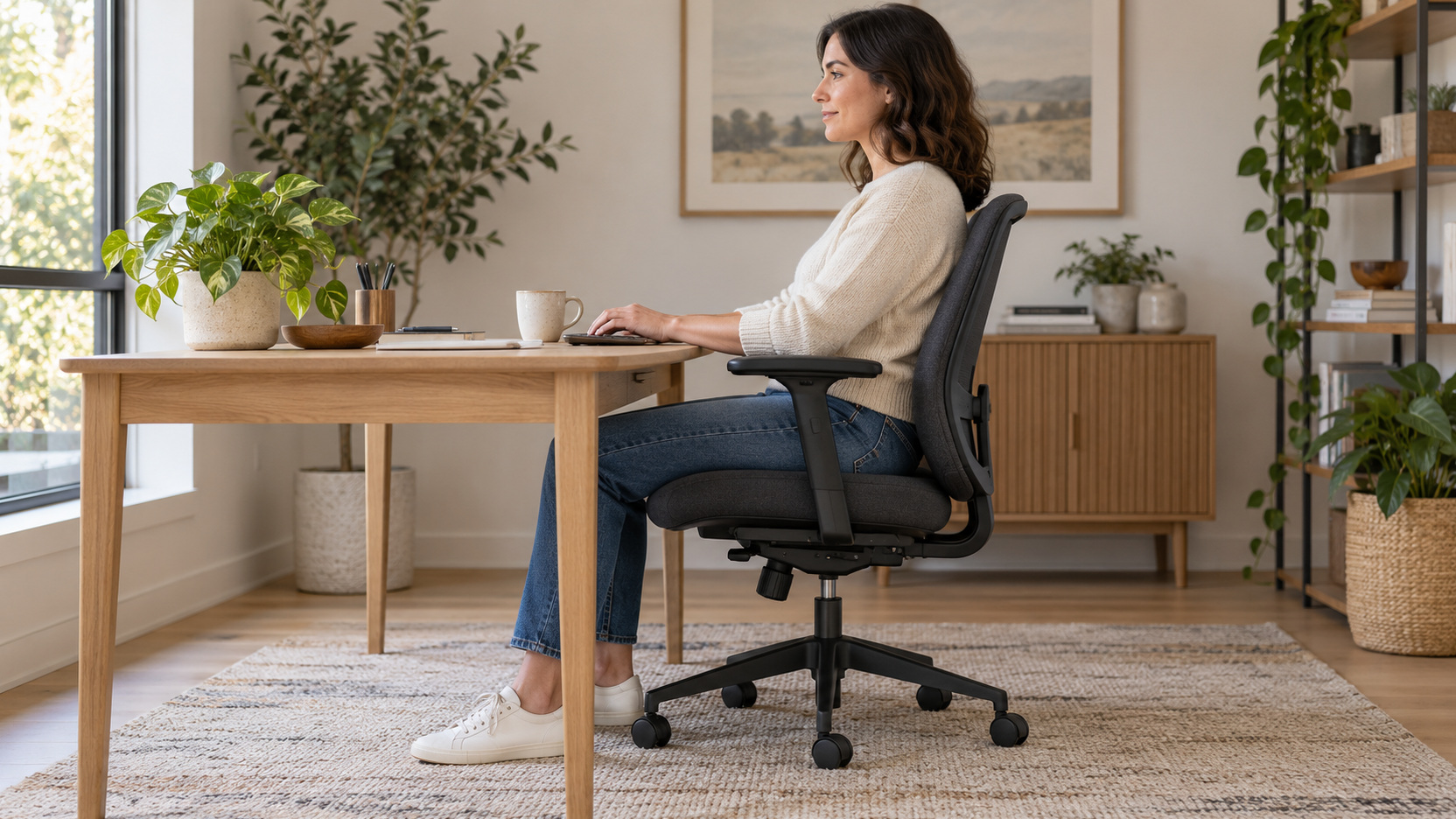
Adjust the chair using its model instructions, with the work surface considered at the same time. Check foot support, seat fit, and how you can use the backrest during intended tasks. OSHA’s chair guidance emphasizes coordinating chair adjustment with desk and equipment placement. Do not try to solve a high keyboard position by choosing a seat setting that leaves the feet unsupported.
Learn the controls before judging what the chair can provide. Change one setting at a time and notice whether the resulting position helps the task. A seat-depth adjustment can affect access to the backrest, while arm placement may affect how closely the chair approaches the desk. Record a useful baseline after the arrangement is established, especially if another person will change it later.
Avoid treating one carefully held posture as the goal for the entire workday. The setup should support ordinary task movement and appropriate position changes. If a chair setting works only while you remain rigidly still, revisit the fit and equipment arrangement. Practical support needs to continue through the way the workstation is actually used.
Bring the Input Devices Within Practical Reach
Place the keyboard and pointing device so normal use does not require persistent reaching beyond the supported working position. Consider the available surface, arm placement, and the tasks done most often. OSHA’s workstation-component guidance treats these devices as parts of the coordinated setup. A large desk can still produce awkward reach if the active equipment is placed at the back behind decorative or rarely used items.
Position the Main Display for the Work You Read
Set the primary screen in relation to the supported working position and the main task. OSHA’s monitor guidance recommends a forward viewing arrangement and considers height, distance, and readable content together. Its general guidance includes a top screen line at or below eye level and a commonly preferred viewing distance of about 20–40 inches. Use this as a starting framework, with the actual task and user considered.
Check text and content size before solving poor readability by leaning toward the screen. A useful display arrangement needs readable information while the chair remains supportive. Adjust available software scaling or text size appropriately and test the work you normally perform. A large screen is not automatically more convenient if its layout still makes the important content difficult to read.
Eyewear and particular tasks can affect a suitable viewing arrangement. Do not force the same display position on every user simply because it appears in a general illustration. If the workstation is difficult to set up with your vision needs, seek appropriate advice. The arrangement should support clear viewing rather than repeatedly encouraging an awkward head position to see the relevant part of the screen.
Solve the Laptop's Linked Screen and Keyboard Problem
A laptop’s built-in screen and keyboard move together, so improving one position can make the other less convenient. For prolonged desk work, assess an appropriate separate input arrangement and screen placement rather than assuming the portable configuration is ideal for every task. Use equipment compatible with the device and suitable for the work. Plan the complete arrangement before buying a stand that changes the screen height without addressing input reach.
Test the setup during the actual sequence of work. Opening the laptop, connecting accessories, and returning the room to household use should be manageable. Keep frequently needed connections accessible without creating an obstruction. A practical home workstation often succeeds because its daily setup is straightforward enough to be repeated consistently.
Arrange Multiple Screens by Frequency of Use
Identify which display receives most of your attention and arrange the workstation around that task. A second screen used occasionally can have a different role from one viewed equally often. Test the relevant work sequence instead of positioning both solely for symmetry. Ask whether the arrangement makes you repeatedly turn away from the supported working position, and adjust equipment or task placement where appropriate.
Control Glare Through Room Placement
Check the screen at the times of day you normally work. A placement that looks clear on a cloudy morning may catch a reflection during afternoon sun. Window orientation, controllable light, and the relationship between screen and room can all matter. OSHA’s monitor guidance includes placing the monitor perpendicular to a window as a useful starting consideration. Verify the result in your actual space rather than relying only on the floor plan.
Task lighting should illuminate the work that needs it without introducing an unwelcome reflection. Try its position with printed material and the display both in use. Keep the controls reachable so brightness can be adjusted when room conditions change. A light that is attractive but inconvenient to operate may be used less thoughtfully than a simpler fixture located well.
Do not use chair position as the permanent solution to a glare problem. If you repeatedly lean or twist to avoid reflection, revisit the lighting and display arrangement. A temporary adjustment may help identify the cause, but the final setup should preserve a supported working position. This is another reason to evaluate the workstation as a complete system rather than buying isolated accessories.
Give Paperwork and Frequent Tools a Deliberate Place
Place repeatedly used documents where they can be referenced without creating a constant reach or blocking active equipment. The right location depends on whether paper or the display leads the task. Consider a suitable document support if it serves a clear purpose. Avoid adding an accessory that reduces useful work-surface space without improving the actual reading or input sequence.
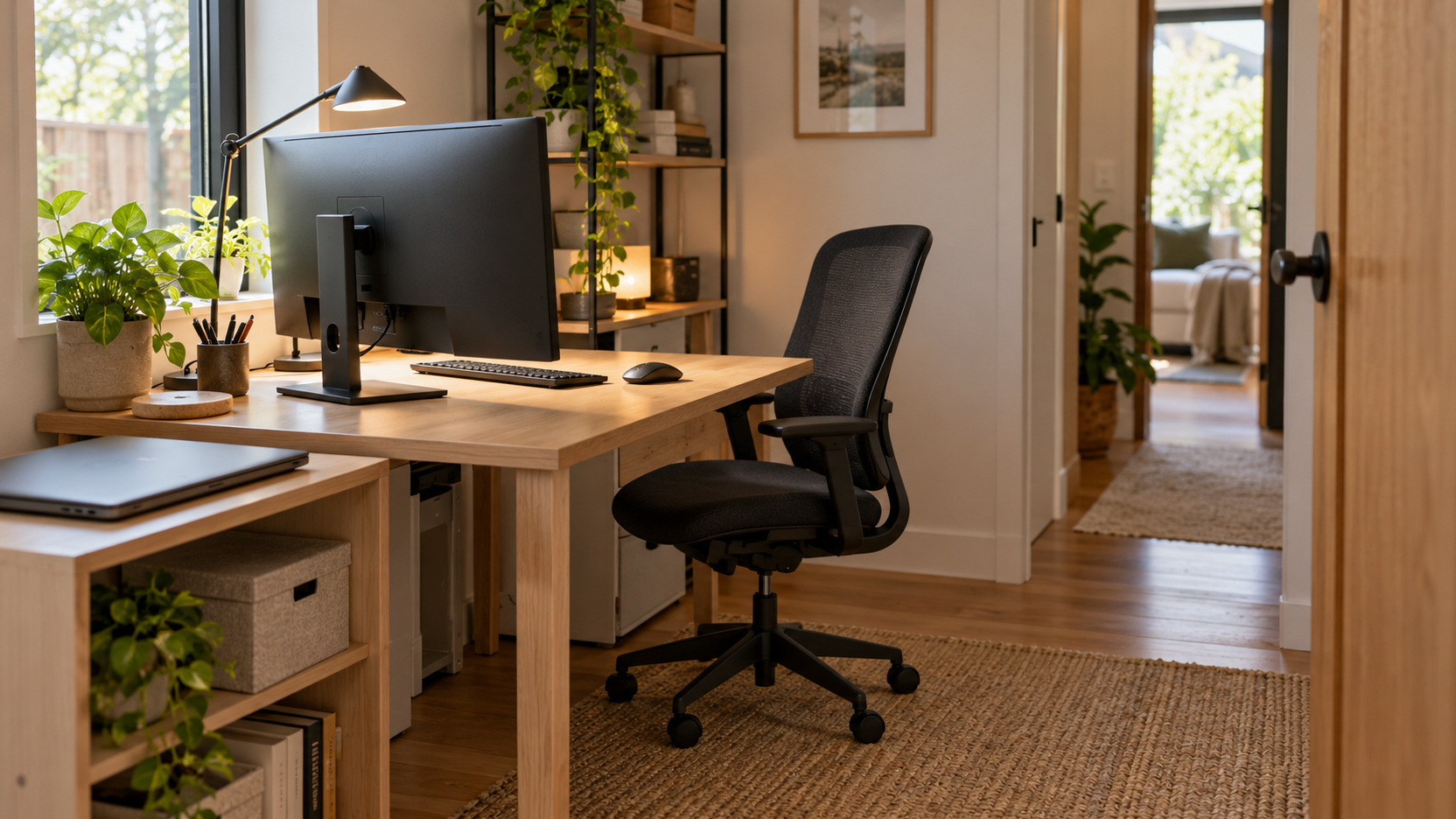
Separate daily tools from occasional supplies. A printer, spare cable, or archive file may not need to occupy the most accessible area. Keep the primary workspace available for the user’s current tasks, with nearby storage supporting retrieval and return. This can make a modest desk feel more practical without requiring a larger surface or a complete office redesign.
Make Cables Follow the Operating Arrangement
Cable organization should support equipment movement, access, and the manufacturer’s installation guidance. Leave the required allowance for any adjustable desk or display and avoid pinching cables through moving components. Keep routes clear of the user’s feet and ordinary chair movement. A neat appearance is useful, but it should not conceal a connection arrangement that interferes with operation or requires inappropriate strain on the equipment.
Plan where connections will be checked or changed. If you often remove a laptop, place its ordinary connection point somewhere accessible rather than hiding it behind a heavy cabinet. Follow relevant equipment and electrical instructions for the setup. The goal is a manageable arrangement that remains usable when the workday begins, equipment moves, or a component needs attention.
Keep chargers and other devices installed as their instructions require. Do not turn cable tidiness into an improvised enclosed equipment space without considering applicable ventilation and access conditions. If a cable or connector appears damaged, address it through the appropriate service or replacement route. Workstation convenience should be built on correctly used equipment rather than decorative concealment alone.
Build Position Changes Into the Routine
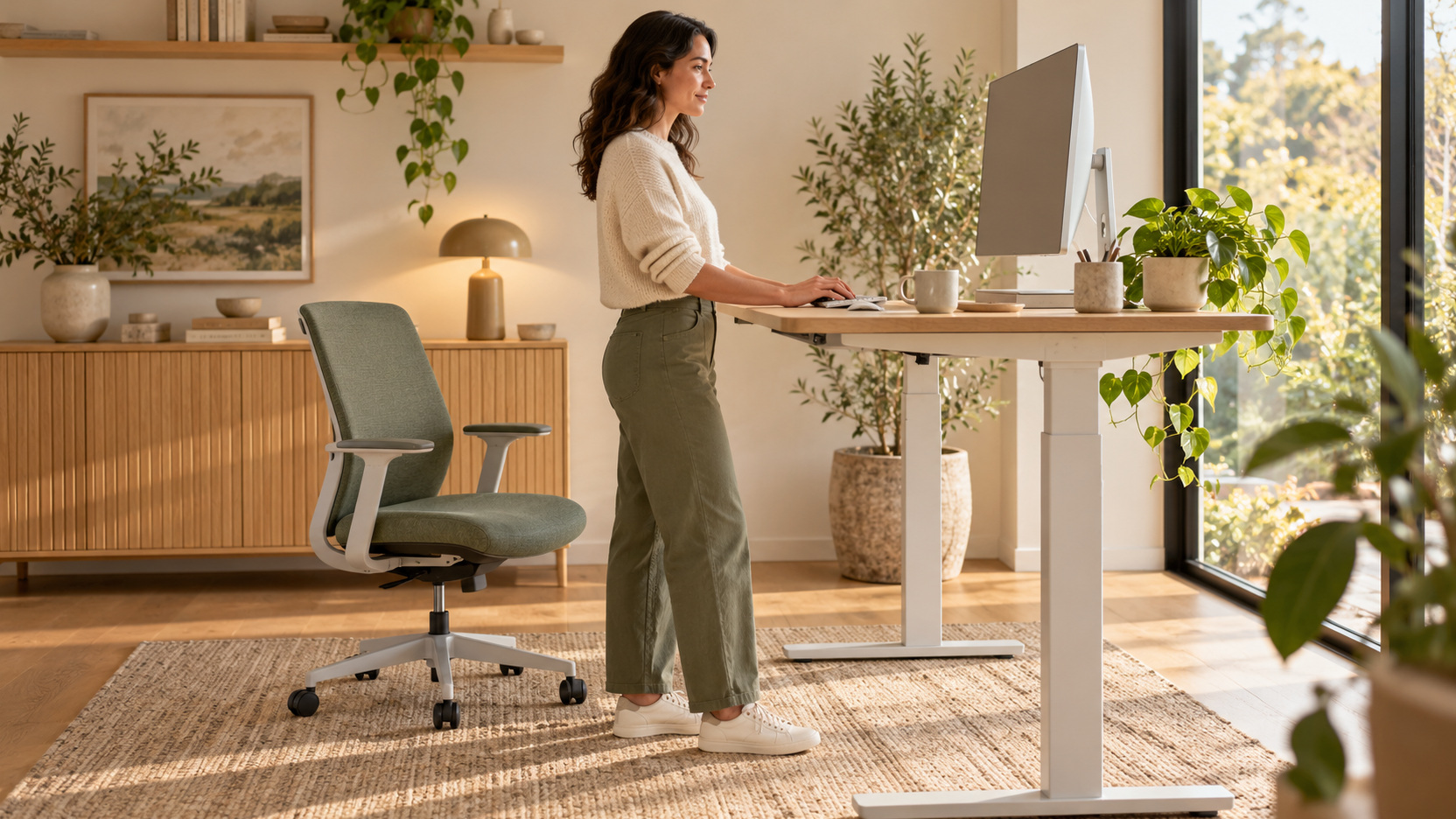
OSHA’s working-position guidance encourages frequent position changes and periodic movement rather than prolonged stillness. Make those changes practical through task planning and a clear route away from the desk. A phone call or paper review may offer an opportunity to vary the arrangement. An adjustable desk can support options, but it does not make the rest of the workstation irrelevant.
Choose changes that suit the task and remain supported by the equipment. Do not substitute an awkward standing arrangement for an awkward seated one simply to use a new feature. Review input height, screen position, and available space in each configuration. A convenient transition makes variation easier to maintain during a busy day.
Pay attention to how the setup feels during normal work, and address persistent symptoms appropriately. Furniture changes do not diagnose pain, numbness, or vision difficulties. Seek relevant professional assessment when symptoms persist or interfere with tasks, and use workplace support where available. The home-office plan can improve practical fit while remaining within that useful role.
Make the end-of-day reset concrete. At a family-room table used for both paperwork and games, give the keyboard and current documents a fitted storage home rather than stacking them on a sofa seat. Clear the available playing area and park the working chair without disturbing the room’s usual reading position. Record the screen and chair settings that need restoring, then try the next morning’s setup before calling the arrangement finished. If the changeover requires moving a large pile or borrowing another person’s seat, reconsider the storage or the surface allocation instead of expecting better posture alone to solve it.
Recheck the Whole System After Each Useful Change
When one component moves, reassess the relationships around it. Raising a screen can alter its glare, moving the chair can change input reach, and adding storage can reduce clearance. Test a real task after the adjustment instead of judging only the new appearance. This short review helps prevent one improvement from creating another inconvenience elsewhere in the workstation.
Record the arrangement that works, including settings needed for the shared or convertible workspace, and keep relevant manuals with the equipment records. Recheck it when a different sofa, a new reading lamp, or another work user changes the room. The goal remains a coordinated work position, but it must coexist with the household’s other places to sit and activities to enjoy. A successful family-room office lets you restore useful reach and viewing each morning without gradually turning the rest of the room into overflow storage.