Find the Pattern Behind the Pause
A movie that stops just as everyone settles onto the sofa can make the entire streaming setup feel unreliable. Yet buffering is a symptom rather than a diagnosis: the player may be waiting for video because the connection is inconsistent, the service is having trouble, or the app needs attention. The quickest useful response is to narrow down when and where the interruption happens. A few comparisons at the television can tell you more than another round of shopping for equipment. Start with the program that stalled, keep track of what changes, and work toward a fix that survives a normal family evening.
Separate Buffering From Other Playback Problems
Buffering usually means playback pauses while the app gathers enough video to continue. You might see a spinning indicator, a loading percentage, or repeated pauses followed by a short stretch of normal viewing. A picture that remains frozen while sound continues can have a different cause, so record what the screen actually does before treating every interruption as a network fault.
Also distinguish a slow start from repeated interruptions halfway through a program. A brief wait when opening an app does not necessarily mean the connection cannot sustain a stream. If menus respond normally but video stops every few minutes, concentrate on delivery and playback; if the entire device struggles to respond, investigate its software and operation too.
Notice whether picture quality drops before the pause. Streaming apps may reduce detail when they cannot receive data consistently, although their behavior varies. That change is useful evidence, especially if it happens at the same time as loading trouble on another household device. Describe the sequence rather than trying to infer a cause from one icon.
Use One Other Program as a Comparison
Try another title within the same app before changing the home network. A problem affecting one episode, live event, or particular feed may not follow you to a different program. Let the comparison play long enough to cover the usual interval between interruptions. An immediately successful opening scene is less informative than several uninterrupted minutes.
Then compare another streaming app on the same television or player. If both apps repeatedly stall, a shared device or connection becomes more plausible. If one works while the other fails, check the affected service’s help information and app updates first. Keep the comparison simple so you can remember which conditions were the same.
Test the Connection Where the Stream Runs
A speed reading from a phone beside the router does not describe what the television receives across the house. Use the streaming app’s connection check or the device’s network diagnostics where available, and follow that product’s instructions. Netflix, for example, includes a network check on supported TV devices in its buffering troubleshooting guidance. Repeat a relevant check when playback is failing, because a quiet afternoon result may miss an evening problem. Record the result alongside the device, approximate time, and whether it was using Wi-Fi or a cable; those details make later comparisons meaningful. If the device offers little diagnostic information, record successful and failed playback comparisons instead. Do not install an unfamiliar utility solely to obtain a number. The evidence you need is whether the connection consistently supports the programs your household wants to watch, at the location and time where you watch them.
Look for Household Competition at the Same Time
Ask what else is happening when the pauses begin. A large download, cloud backup, game update, or several simultaneous streams can change the load on the household connection. The useful clue is a repeatable relationship, such as buffering during a laptop backup that disappears when the backup finishes. Avoid blaming a family member based on one coincidental interruption.
For a controlled comparison, temporarily pause one substantial background transfer and replay the same program. Leave the rest of the setup alone. If the improvement repeats, scheduling that transfer outside viewing hours may be enough. If nothing changes, restore the household activity and continue investigating instead of imposing unnecessary restrictions.
Remember that advertised broadband speed and reliable delivery are different considerations. A connection can achieve a strong peak result yet still behave inconsistently at the TV. Compare multiple observations rather than treating a single speed number as a verdict. A household with frequent simultaneous use may also need more capacity than one stream alone requires.
Restart Deliberately, Then Recheck
Close and reopen the affected app using the device’s supported controls. If the trouble continues, follow the manufacturer’s restart procedure for the television or streaming player. Some devices distinguish sleep from a full restart, so pressing the power button may not accomplish what you expect. Save a complicated network reset for instructions that actually call for it.
When restarting network equipment is appropriate, use the router or provider’s documented sequence and allow it to finish reconnecting. Warn anyone who is using the internet first, especially during a call or upload. After the indicators show a normal connection, repeat your original playback test. A restart is useful when it produces a measurable improvement, not simply because everything has been switched off.
Improve the Wireless Path With a Small Move
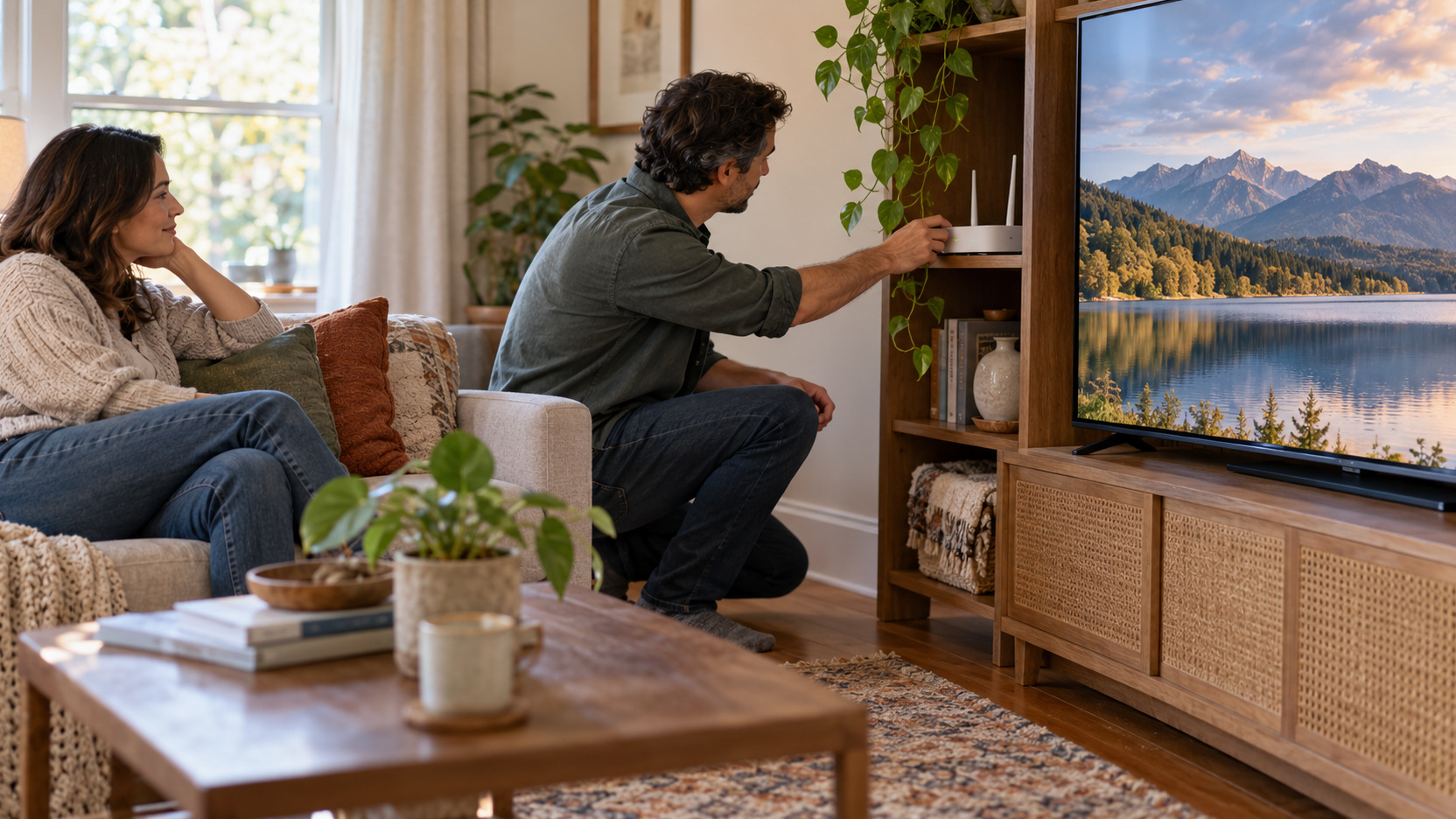
Look at the router’s placement and the path to the television. A router buried behind furniture or enclosed in a cabinet can have a harder job than one in an open, practical position. Moving it a modest distance may be a reasonable test if the cables and household layout permit. Keep ventilation clear and avoid creating a new trip hazard.
Examine the player as well, particularly a small device hidden behind a large screen. Its manufacturer may provide placement guidance or an included extension accessory. Follow that guidance instead of improvising a mount that blocks ventilation or strains a connector. A cleaner-looking position is not helpful if it makes the device operate poorly.
Compare performance after one placement change, preferably during the time that usually causes trouble. If the result improves, repeat it before making the arrangement permanent. If moving equipment does little, do not keep rearranging the room indefinitely. The next comparison should help determine whether Wi-Fi is actually the limiting part of the setup.
Compare a Supported Wired Connection
An Ethernet comparison can help separate wireless conditions from other causes when the TV or player supports it. Use a compatible port or manufacturer-supported adapter and a safe cable route. If a temporary cable would cross a busy walkway, choose another test arrangement rather than leaving a hazard for the family. Watch the same service under otherwise similar conditions.
A successful wired test suggests that the wireless path deserves further attention, but it does not automatically identify one specific router defect. An unsuccessful wired test also needs interpretation: the app, device, broadband service, or cable connection may still be involved. Check that the device actually switched to Ethernet. Treat the result as another piece of evidence rather than a promise that buying a cable fixes everything.
Check Software Without Losing Your Setup
Look for supported updates to the affected app and streaming device. Use their normal update menus and allow enough time for installation to finish. An update can address known playback problems, but it should not be presented as a universal cure. Recheck the same program after installation so you know whether the change helped.
Review any relevant service notice or device-specific troubleshooting page. Instructions for one platform may include actions that do not exist on another, so keep the guidance tied to the model you own. If support recommends signing out or reinstalling an app, make sure the household can sign back in. Avoid turning an interruption into a lost-account problem.
Do not begin with a factory reset merely because several simpler attempts have failed. A reset may remove preferences, accounts, and other useful setup information. It belongs later in a documented troubleshooting process, with a clear explanation of what will be lost. Prepare for recovery before taking that step.
When several apps fail on the same player while another device streams normally, the player warrants closer attention. Check its supported software and operating conditions, including unobstructed ventilation. A replacement decision is stronger when these comparisons point consistently to the device. Its age alone does not prove that it caused tonight’s buffering.
Use Picture Quality as a Diagnostic Choice
If the service allows playback-quality changes, a temporary lower setting can reveal whether a lighter stream behaves more reliably. Make the change through the service’s supported controls and remember the previous setting. This is a diagnostic comparison, so watch long enough to establish whether the pauses actually decline. A single smooth minute does not establish a lasting fix.
An improvement at lower quality may give the household a workable short-term viewing option while you investigate. It does not prove that the internet plan is inadequate or that the TV cannot handle a higher-resolution picture. Connection consistency, competing use, and device behavior still matter. Restore the preferred setting when retesting the underlying fix.
Recognize a Problem Outside the Room
If multiple devices and services struggle at the same time, check your provider’s service information and the household connection more broadly. If only one streaming service fails across several devices, consult that service’s current status or help channels. These comparisons can keep you from dismantling a functioning room setup during an external incident. They also provide useful details when requesting assistance.
Contact support with a short account of the evidence: the affected device, apps, timing, and the results of a wired comparison if one was possible. Explain whether other household devices were affected and which changes you tried. Accurate observations are more useful than a long list of assumed causes. Ask for the next appropriate test for your equipment rather than requesting an upgrade before the fault has been identified.
Keep any temporary workaround proportional to the disruption. Switching to a working app, downloading through a service that supports offline viewing on an appropriate device, or postponing one demanding transfer may preserve the evening. Avoid promising that a particular workaround is available on every television. Choose an option your existing services and devices actually support.
Decide Whether Hardware Changes Are Justified
Consider new network equipment only after your comparisons show a persistent coverage or capacity issue that simpler changes cannot resolve. Consider a different streaming player when device-specific problems remain despite supported troubleshooting. The useful purchase addresses an identified limitation; a faster specification on a box may not affect the part of the system that is failing. Check compatibility, return terms, and the practical placement of any proposed addition before spending money.
Keep a Small Record of the Fix
Once playback improves, repeat the test during ordinary household use. Turn the usual activities back on and watch a complete program if possible. A fix that works only when every other device is idle may need further refinement. The aim is dependable family viewing under realistic conditions.
Save a brief record of what solved the problem and which changes made no difference. Include any placement adjustment, software update, or provider repair that produced a repeatable improvement. That record prevents the same trial-and-error sequence next month. It also makes future help easier, because you can begin with what the household already knows about its setup.