Match the Gaming Display to Your Position and Platform
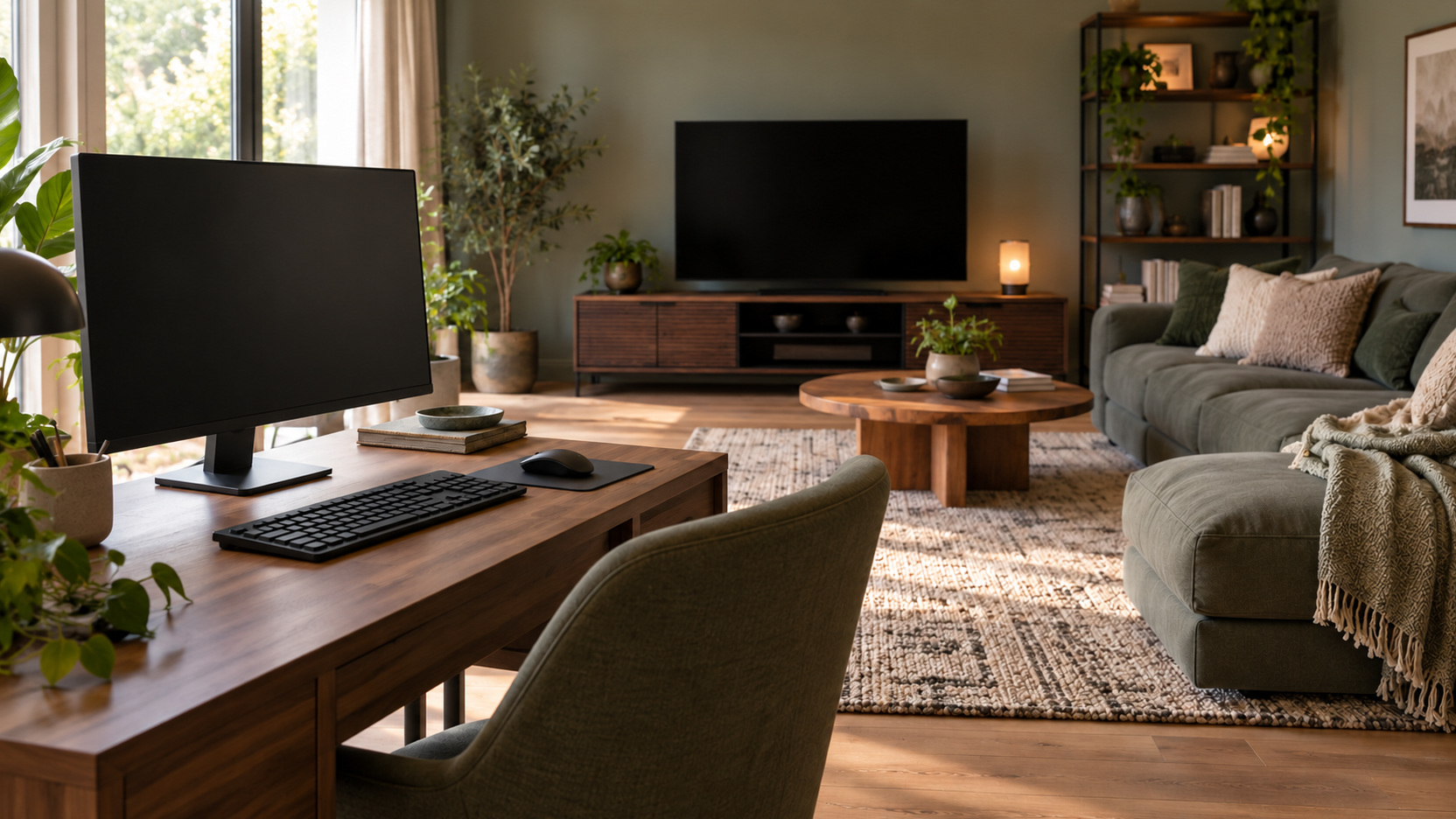
A gaming monitor and a television can both be excellent displays, but they often serve different positions and activities. A close desk arrangement emphasizes input space, readable interface details, and a screen that fits the user’s view. A sofa arrangement may prioritize shared play, picture scale, and integration with ordinary entertainment. The category alone cannot decide performance: individual models differ in connections, supported features, processing, and physical design. Start by identifying where you will play and what your source can deliver, then compare suitable products through that brief. This turns the choice into a practical decision about the whole setup rather than a contest between two broad labels.
Establish the Main Play Position First
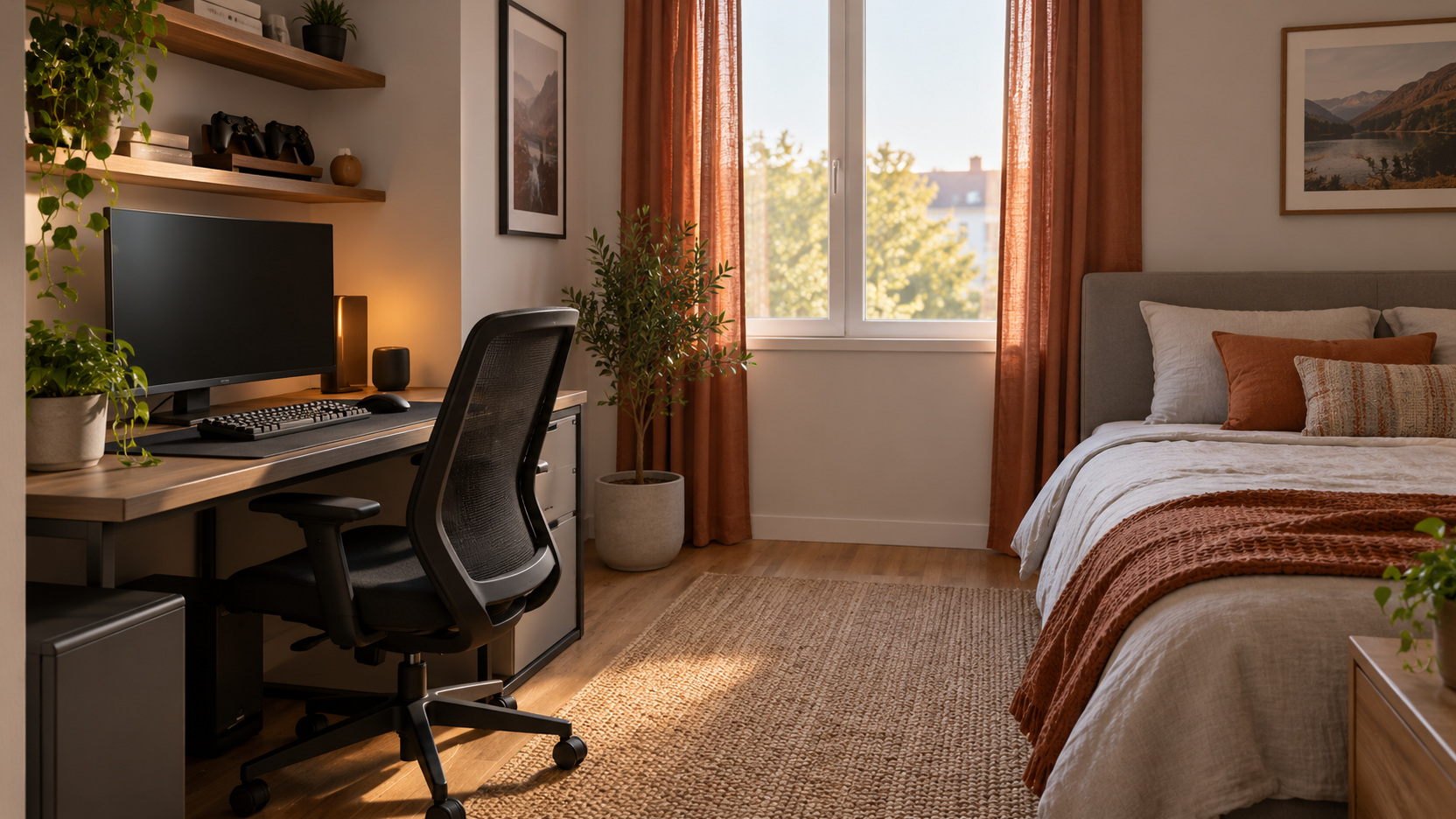
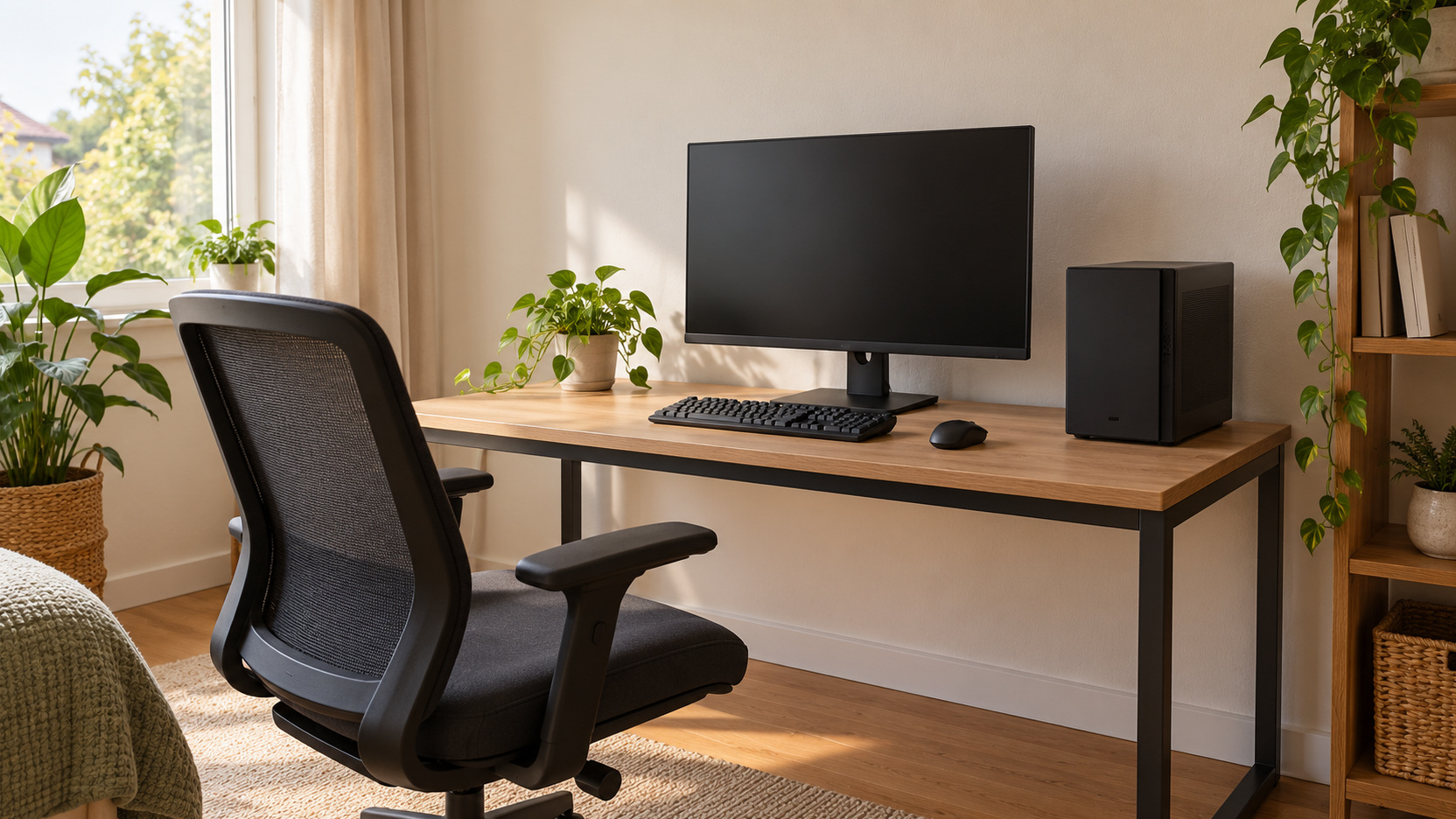
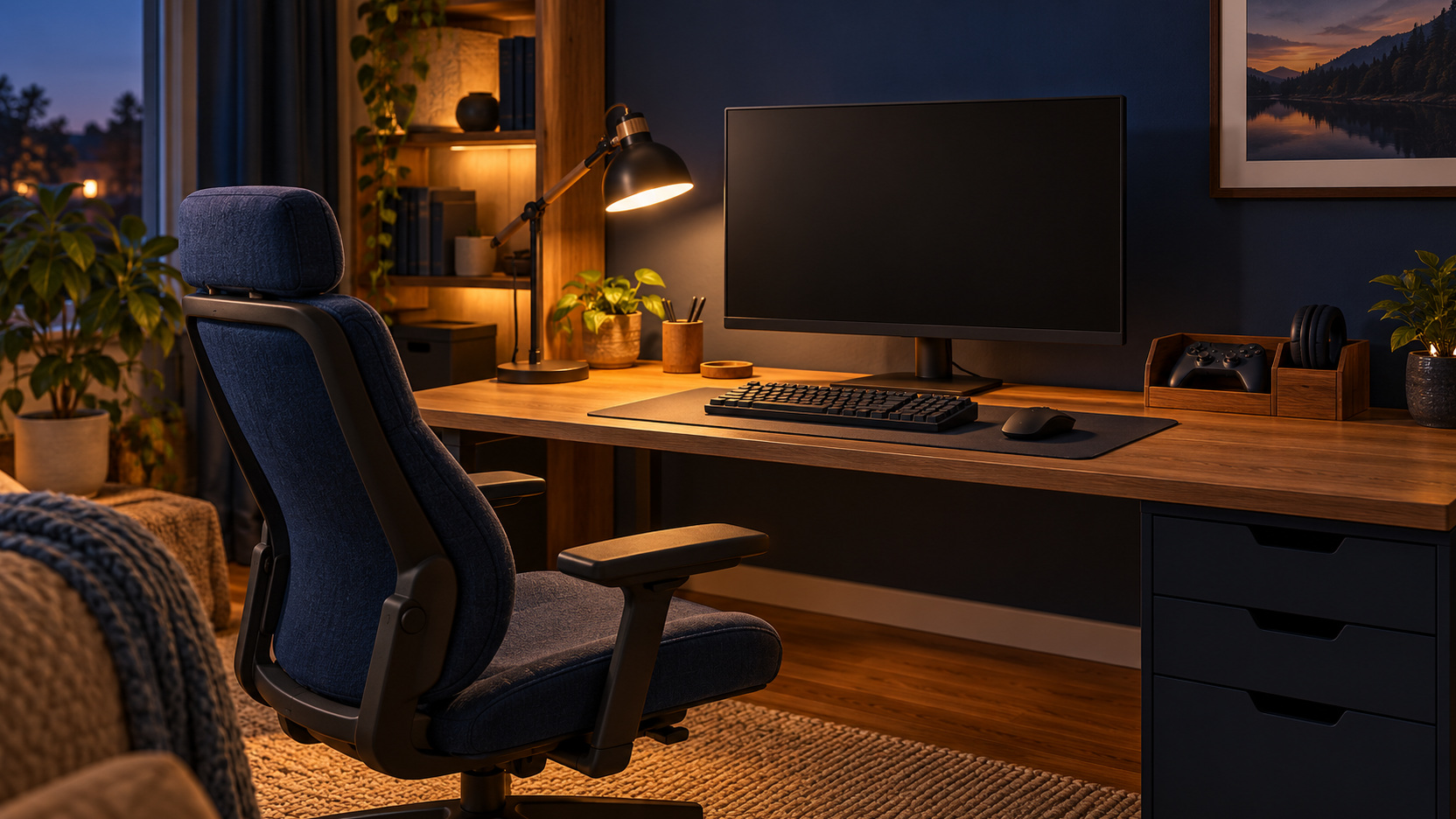
Choose the seat and controls that define most sessions. Desk gaming with a mouse and keyboard usually needs a coordinated surface and an adjustable relationship between user and display. Sofa gaming with a controller creates a different physical arrangement. The screen should serve that position instead of forcing the room to imitate its marketing photograph.
If you plan to use both, decide how the transition works. A display may technically accept multiple sources while remaining poorly placed for one activity. Consider the movement of furniture, input devices, and cables. A practical primary arrangement can be more useful than an ambitious dual-purpose plan that requires constant reorganization.
Compare Size Through Real Game Information
Check menus, subtitles, inventory screens, maps, and other interface elements from the intended position. They can expose a mismatch that a large cinematic image hides. The goal is to see relevant information comfortably while playing. The largest screen that fits the wall is not automatically the most useful screen at a desk. For example, trial a strategy game with its information panels open from your normal keyboard position. Compare that with a controller game from the sofa. If the larger candidate makes the distant view more involving but puts frequently inspected desk information awkwardly near the edges of your view, the two activities have different display needs. A familiar task is more revealing than an empty desktop.
For shared play, test the regular side seat as well as the center. Viewers may experience different picture quality at an angle, and split-screen content can change the apparent scale of interface details. Include the games your group actually uses. A display suited to one centered player may serve a different audience less comfortably.
Consider physical dimensions separately from advertised diagonal size. Stand depth, overall width, mounting requirements, and connection access affect the installation. A monitor may occupy more desktop area than expected, while a television’s stand feet may demand a specific support. Use the dimensions of the exact model rather than assuming proportions from another product.
Read Supported Inputs Before Comparing Headline Features
Find the documented resolution and refresh modes for the input you will actually use. A monitor’s DisplayPort capability does not establish the same modes over HDMI, and a console’s output must match the selected input. A television’s individual HDMI ports can also have different supported functions. Check the entire path before treating a maximum specification as an available gaming mode.
PlayStation’s PS5 video guidance illustrates that dependencies include the display, appropriate HDMI input, cable, settings, and intermediary equipment. Use your platform’s equivalent documentation, including a receiver or switch if present. Then verify the resulting mode through the source’s information display. A supported output you can confirm is more useful than an impressive label whose required route does not exist in your setup.
Separate Refresh Rate From the Game's Frame Rate
Refresh rate describes how frequently a display can update its image; game frame rate concerns the images the source produces. A high-refresh display does not make every game render at that rate. Your hardware, title, settings, and supported output determine what reaches it. Read those requirements before paying for a capability you expect to use. Dell’s gaming-monitor guide discusses refresh rate, response time, and adaptive synchronization as separate considerations. Treat them as parts of the assessment rather than one interchangeable speed score. A system should support the intended combination through its actual input. The explanation is more useful when it refers to your platform and games. During a demonstration, ask what source and settings are active. A fast scene driven by a different computer may not represent your own experience. Compare familiar material where possible. The purchase should fit a realistic output target, not merely the most impressive demonstration the display can present.
Distinguish Pixel Response From Input Delay
Pixel response concerns the display’s transition between image states. Input delay concerns the time involved before a received signal is presented; the broader response to a button also includes other parts of the system. A quoted response-time number therefore does not independently establish total controller-to-picture delay. Examine the manufacturer’s explanation and the intended operating mode.
Avoid comparing measurements with different definitions as though they are identical. A short advertised number may use a particular test method or setting. Ask what the figure describes and whether the demonstration uses that mode. Then judge the actual gaming presentation, including visible motion, rather than selecting a product from one numerical claim.
Check Game Modes and Their Practical Operation
Televisions can offer a gaming mode intended to reduce processing delay. Samsung’s Game Mode guidance provides a model-dependent example. Confirm the instructions and supported behavior for the particular television you are considering. A television is not automatically unsuitable simply because another model uses more processing in its ordinary picture mode.
Check how the gaming arrangement begins and ends. Some supported combinations can change modes automatically; others need a user action. Investigate what happens when you return to television or streaming content. That transition matters when the screen serves the whole family.
Monitors also provide model-specific settings that deserve understanding. Do not assume the most aggressive response setting is the ideal choice for every scene. Follow the manual and compare the result using familiar games. A useful default should deliver a comfortable picture without requiring an unexplained collection of adjustments.
Confirm Variable Refresh Support as a Combination
Variable refresh rate lets a compatible display synchronize its refresh timing with the source’s changing frame output. PlayStation explains that its implementation dynamically synchronizes supported HDMI 2.1 VRR televisions and monitors with the PS5 output, helping reduce visual artifacts such as tearing. This differs from a high fixed maximum refresh rate, and it does not make the game render more frames. Its value depends on the source, game, display, and supported range working together.
For a PS5 comparison, confirm support through the console’s documented video information and use a compatible game. For a computer, check the graphics hardware and display’s actual synchronization requirements and connection. Similar badges do not settle every combination. If variable refresh is important to your purchase, name the precise source, input, and desired mode in the compatibility check, then verify that arrangement after installation before evaluating its benefit.
Evaluate Picture Quality Under Your Room's Conditions
Look at the screen in lighting comparable to the room’s ordinary use. Bright windows, lamp reflections, dark evening scenes, and off-center seats all contribute to the viewing experience. Panel category and HDR branding do not replace that assessment. Include both detailed bright material and darker game scenes. A display should present the content comfortably in the conditions you actually have.
Account for Audio and the Rest of the Equipment
A television may offer a convenient role in a shared entertainment arrangement, while a monitor may need separate audio equipment for your intended use. Check actual speakers, audio outputs, and headset compatibility rather than relying on category assumptions. Include voice chat if it matters. The display choice should not leave an essential audio function unplanned.
Consider how your source connects when the display lacks the desired audio route. Use the platform and accessory documentation to confirm the arrangement. Do not add an arbitrary adapter before verifying support. A complete quotation should include the equipment required to hear and communicate in the way you intend.
Make the controls understandable too. Switching inputs, adjusting sound, and returning to ordinary viewing should be manageable for regular users. A technically capable screen can still become inconvenient through its operating routine. Include that routine in the demonstration rather than discovering it after installation.
Compare Desk Work and Shared Entertainment Needs
If the display also supports writing, browsing, or schoolwork, test text from the normal work position. Check the relationship between screen scale, viewing distance, and the available input surface. A television that excels for sofa movies may not suit the same person’s close desk tasks. A monitor that works beautifully for one user may feel small during family viewing.
There is no need to force one display to serve every activity. You may choose a strong primary arrangement and retain another existing screen for occasional use. Compare that plan with the cost and inconvenience of an ambitious all-purpose product. The right decision may be a simpler division of activities rather than another premium feature.
Price the Complete Installed Display Choice
Include the required stand or supported mounting, audio arrangement, compatible cables, and any fitting work. Check whether the existing furniture can support the proposed model appropriately. A monitor’s price and a television’s price become more comparable when both describe a working setup. Delivery and handling requirements may differ as well.
Read trial and return terms if an in-home comparison is important. You may discover that a screen fits the technical brief but feels wrong from the intended position. Clear terms help you assess that possibility sensibly. Avoid making a purchase on the assumption that a category guarantees comfort or easy compatibility.
Record the exact model and product generation. Similar names can cover different features, stands, or supported modes. Verify the specification of the item in the actual listing. This prevents comparing one product’s review or manual with a different version you are about to receive.
Select the Screen That Makes the Whole Setup Work
Choose between the actual positions rather than a universal category winner. A mouse-and-keyboard player with one desk seat may prefer a monitor that leaves useful input space and makes game information readable nearby. A controller player sharing games and films from a sofa may favor a television that serves those seats and the existing audio arrangement. Capable products exist in both categories; the position and platform establish which models belong in your comparison.
Run an ordinary session with the intended controls, sources, and sound. Confirm readable interface details, supported output, the mode-switching routine, and complete installed cost. Include returning to work or family viewing if the screen is shared. If one model meets the technical target but makes that transition cumbersome, give the inconvenience appropriate weight. The winning display is the one that makes the full setup work repeatedly, not the category with the most impressive isolated specification. Include the controls and connection access in that session: changing a source or recovering the normal picture mode should be manageable after the installer or salesperson leaves. That practical test can distinguish two otherwise suitable models without inventing a category-wide performance rule.